
My Ingredients is your own food list. When you describe a meal, EvoLogs checks it first and uses your numbers. Add an ingredient with AI Lookup or by typing the values from a label.
Steps
- On the Nutrition tab, open the menu at the top right and tap My Ingredients.
- Tap Create to open New Ingredient.
- Under AI Lookup, type an ingredient, for example “100g chicken breast”, and tap the sparkle button.
- Or fill in Name, Default Unit, State and the Macros per 100g yourself.
- Optionally add Unit Conversions: grams per 1 piece, 1 slice, 1 tbsp or 1 cup.
- Tap Save.
- To change one later, open it and tap the edit icon; tap Duplicate to make a variant.
What goes in, and what does not
| Added to My Ingredients | Not added |
|---|---|
| Ingredients you create here | Ingredients of meals you log |
| Quick Add shortcuts made with AI | Manual Quick Add shortcuts |
| The ingredients of recipes you save |
To keep an ingredient from a logged meal, save the meal as a recipe or create the ingredient here.
What you see
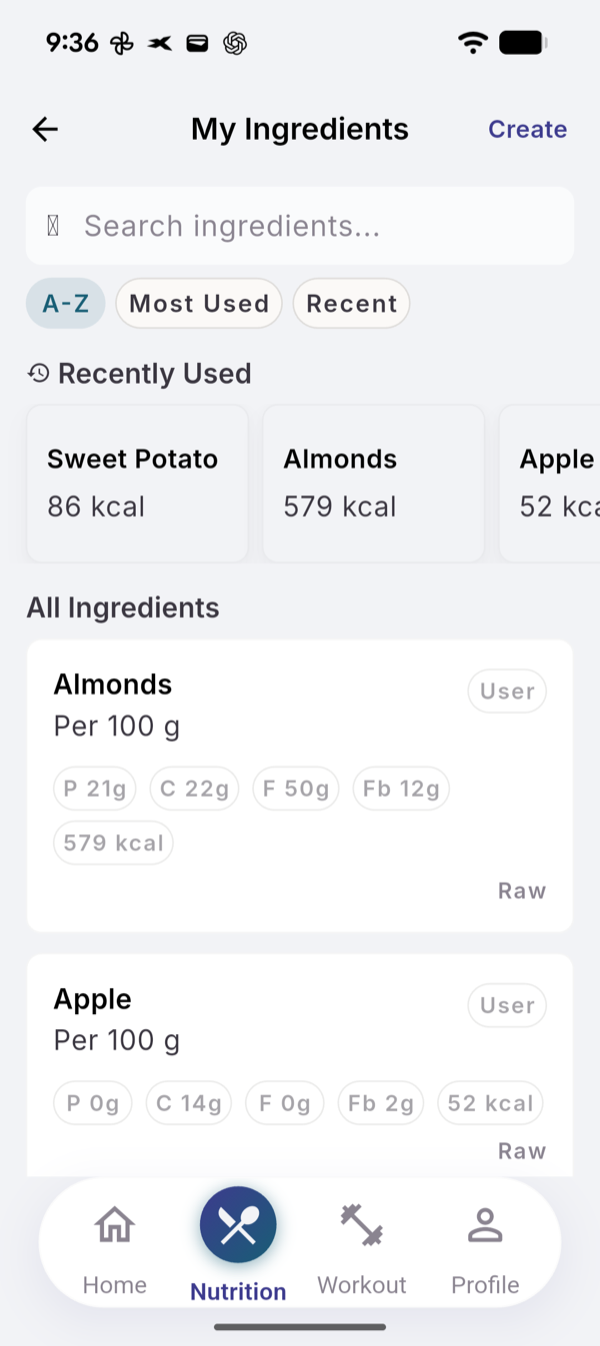
Recently Used sits above All Ingredients. Sort with A-Z, Most Used or Recent. Each ingredient is tagged with where it came from.
Limits
An AI Lookup uses one text analysis: 15 per 30-day cycle on Free, 200 on Pro. Typing values yourself is free.
If it does not work
- Ingredient Already Exists: choose Use Existing, or Use AI Data to keep the new values.
- “AI needs internet. Log manually.” Type the values yourself.
Related
- Why your own list: /blog/calorie-tracking-without-a-food-database
- /help/quick-add
- /help/recipes