
Quick Add is a row of shortcuts on the Nutrition tab for small things you have often, such as coffee with milk or a piece of fruit. Tap one and it is logged as a snack for today. You set them up in Manage Quick Add.
Steps
- On the Nutrition tab, tap the sliders icon next to Quick Add, or Manage quick add when the row is empty.
- Tap Add to open New Quick Add.
- Under Describe your item, type it, for example “coffee with milk”, and tap the sparkle button.
- Or tap Add manually and enter the Name, Quantity and Calories yourself.
- Check the values and tap Save.
- Drag a shortcut by its handle to reorder the list.
- Swipe a shortcut to the left to remove it, and tap Undo to bring it back.
- Back on the Nutrition tab, tap a shortcut to log it.
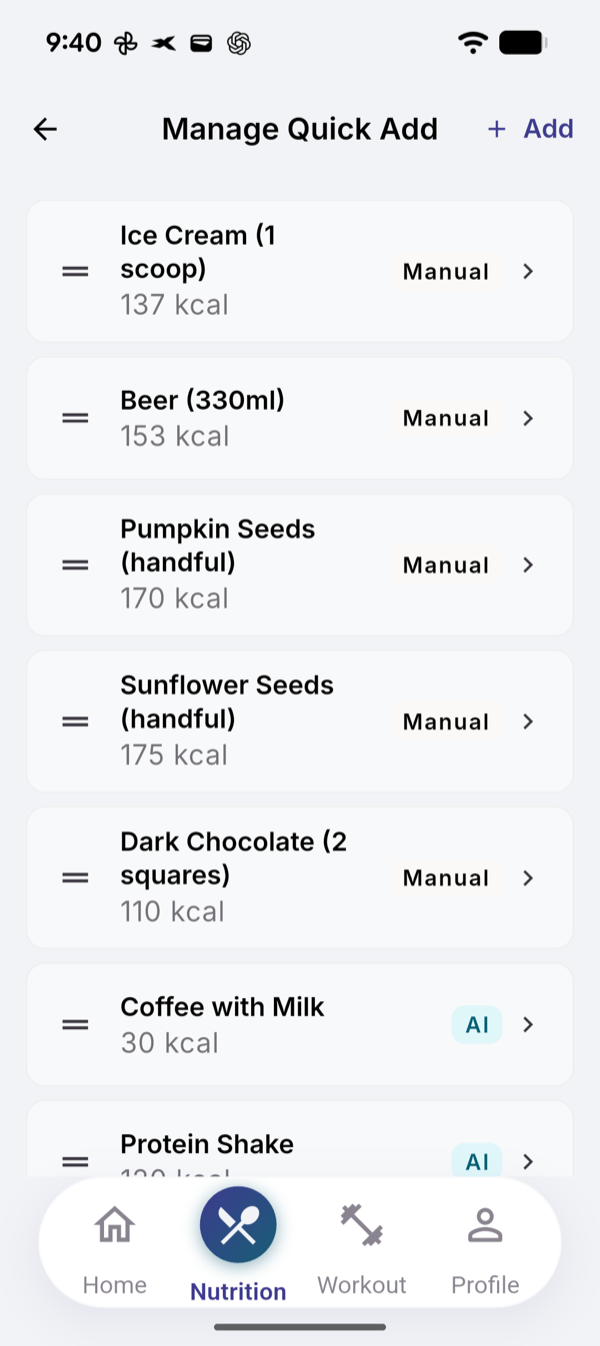
What you see
Each shortcut is marked AI or Manual. Tap one in Manage Quick Add to edit it. A shortcut made with AI is also added to My Ingredients, so your meals can use it.
Limits
Describing a shortcut uses one text analysis: 15 per 30-day cycle on Free, 200 on Pro, doubled on Free in your first week. Shortcuts made by hand and every tap to log are free.
If it does not work
- “Couldn’t find that. Try different words or add manually.”
- “An item with this name already exists”. Pick another name or edit the existing one.
- “AI needs internet. Log manually.” Use Add manually instead.
Related
- Why: /blog/calorie-tracking-without-a-food-database
- /help/your-ingredient-list