
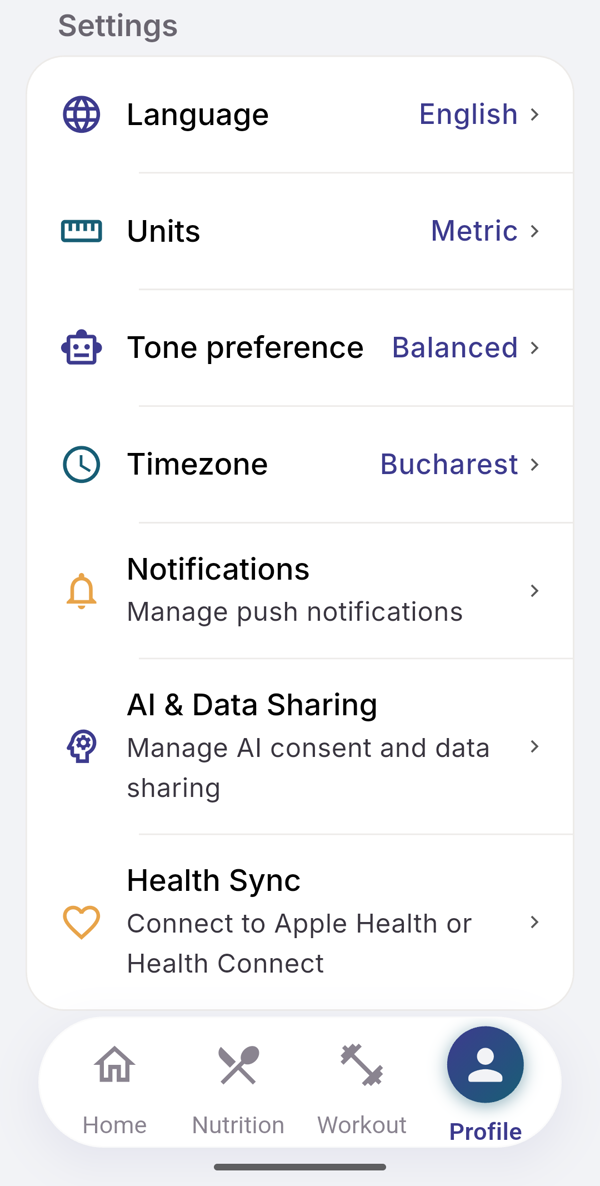
Open Profile and scroll to Settings. Units, Language and Timezone each open a short list; your choice applies at once.
Steps
- Tap Profile in the bottom bar and scroll to Settings.
- Tap Units and choose Metric (kg, cm, ml) or Imperial (lb, in, fl oz).
- Tap Language and choose System, English or Română.
- Tap Timezone, type a city in Search timezones…, and tap it.
What you see
- Units cover weight, height and water. EvoLogs keeps your data in metric and converts what you see, so switching back and forth loses nothing.
- System follows your phone’s language. Before you sign in, the gear icon on the sign-in and create-account screens offers the same choice.
- Timezone is taken from your phone during onboarding. It does not change by itself when you travel, so set it here after a move. Reminder times and quiet hours follow it.
- Theme. This version has no dark mode setting; the app uses a light theme.
If it does not work
- “Something went wrong. Please try again.”: the change was not saved. Check your connection and choose again.