
Open Profile, tap Measurements, then the round + button. Weight and height are required; tape measurements and photos are optional. Tap Save and the entry joins your list.
Steps
- Tap Profile, then Measurements under My Data.
- Tap the round + button at the bottom.
- Check the Date, or tap it to log an older measurement on the day it was taken.
- Under Progress Photos, tap Add on Left, Front or Right and choose Camera or Gallery.
- Enter Height and Weight.
- Fill in any of the 11 tape measurements: Neck, Chest, Arm (L and R), Waist, Navel, Hips, Thigh (L and R), Calf (L and R).
- Tap Save.
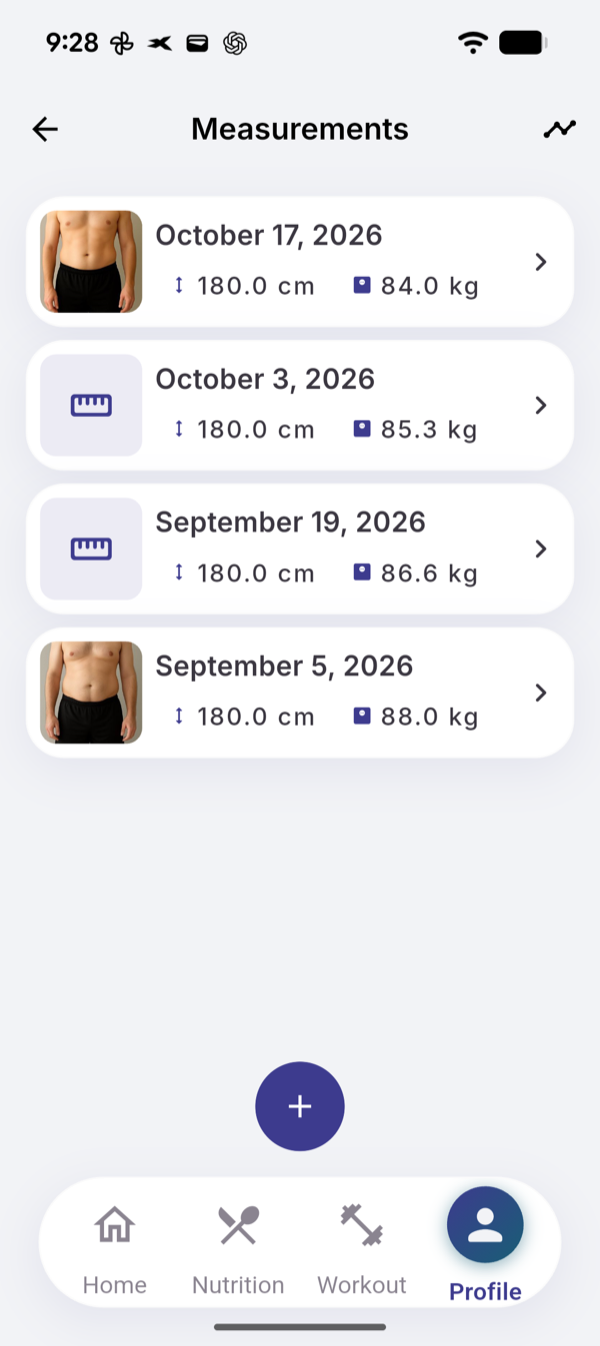
What you see
- How to measure. The help icon next to arms, waist, navel, hips, thighs and calves shows where to put the tape.
- Units. Fields follow your Units setting, metric or imperial.
- Empty list. You can Import your profile weight and height as a first entry.
- An entry. Tap it to see it, with Delete and Edit at the bottom.
Limits
| Plan | Measurement entries |
|---|---|
| Free | 3 in total |
| Pro | No limit |
The Free limit counts entries and does not reset. With three entries, + opens “You’ve reached the limit”. Deleting an entry frees a slot.
If it does not work
- Weight is required or Height is required: fill in both.
- “Photo couldn’t upload. Try again?”: tap the photo slot again.
- “Couldn’t save right now. Try again?”: check your connection and tap Save again.
Related
- Why it works this way: /blog/progress-photos-and-measurements
- /help/evolution-and-progress-photos