
On the Measurements screen, tap the chart icon at the top right to open Evolution. The icon appears once you have two entries.
Steps
- Tap Profile, then Measurements.
- Tap the chart icon at the top right.
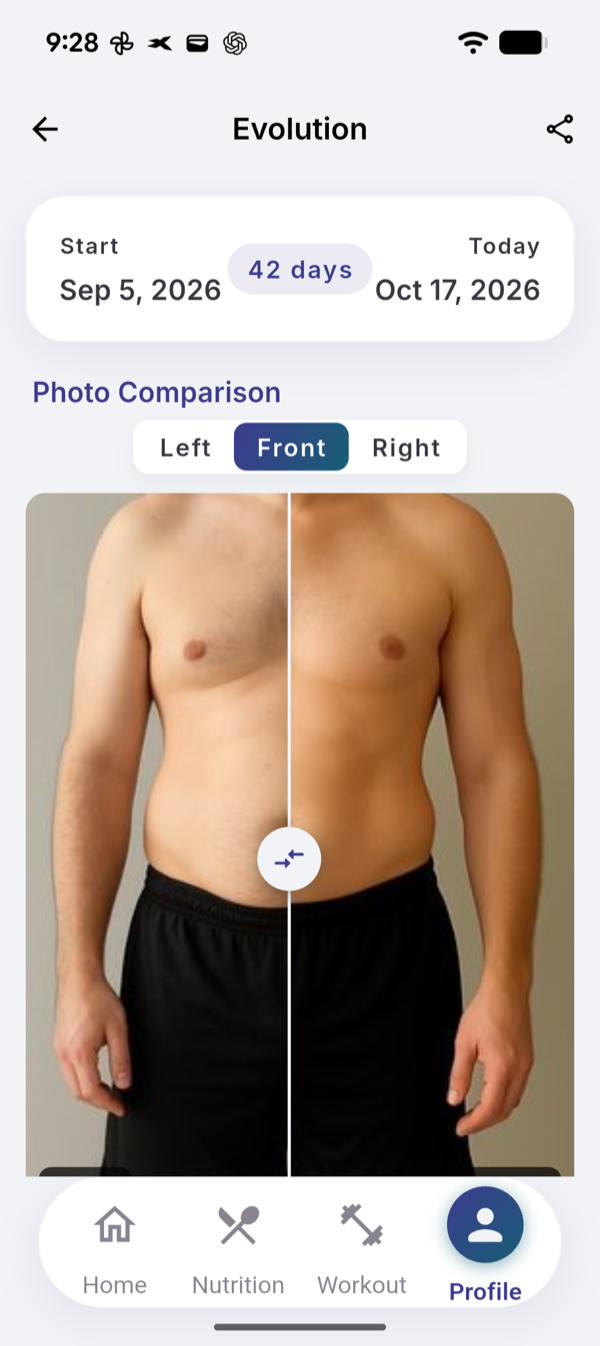
- Under Photo Comparison, choose Left, Front or Right.
- Drag the divider across the photo to see before and now.
- Tap a date under the photo to compare two other entries.
- Under Weight Trend, tap 1W, 1M, 3M, 1Y or All.
What you see
- The span. Start with the date of your first entry, Today, and the number of days between them.
- Photo Comparison. Your first and latest photo for the angle, until you pick other dates.
- Weight Trend. A line for the range, with Start, Now, Low and High.
- Measurements Comparison. Each measurement with Start, Now and Change, from your first and latest entries.
- Share. The share icon makes an image of the screen. Nothing is shared unless you tap it.
- All photos of one entry. Tap an entry in the list, then a photo, and swipe.
If it does not work
- No chart icon: you have fewer than two entries. Add another one.
- “No photos here yet”: no entry has a photo for that angle.
- “One more photo and you can compare your progress”: only one entry has a photo for that angle.
Related
- Why it works this way: /blog/progress-photos-and-measurements
- /help/log-a-measurement