
On the Workout tab, tap the round + button at the bottom and choose Start New Workout. The timer starts at once, you add exercises as you go, and nothing is saved until you tap Finish workout.
Steps
- Tap the round + button at the bottom of the Workout tab.
- Choose Start New Workout, or Load from Routines to start from a saved routine.
- Tap Add exercise (later, the sparkle button) to type or say one, or Choose from saved to pick from your list.
- Tap the exercise, enter Reps and Weight, and tap Add set for each new set.
- Tap the circle on a set when you have done it.
- Tap Finish, move the Effort slider, and tap Finish workout.
What you see
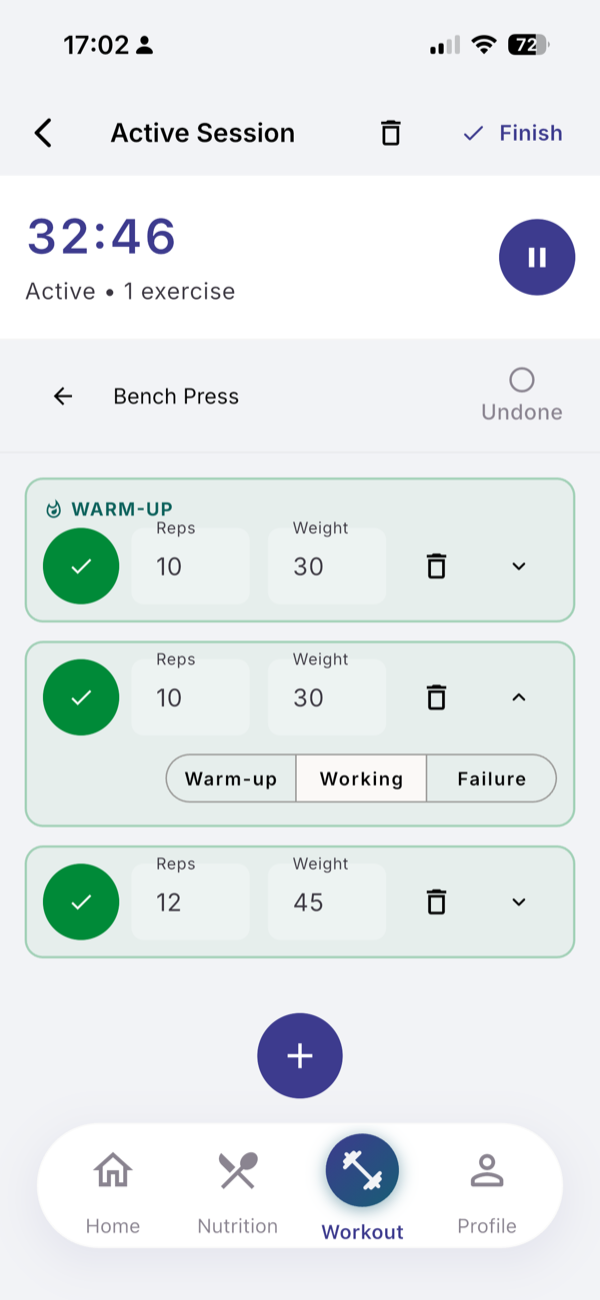
- Set types. Tap the arrow on a set and choose Warm-up, Working or Failure.
- Rest timer. Ticking a set opens Rest, 60 seconds by default, with -15s, +15s, +30s and Skip Rest.
- Finish sheet. Effort from 1 to 10 (starts at 5), Save as routine (template) and Feedback notes. Get Insight is an optional AI estimate of calories and effort.
- Repeat. In History, tap a session and choose Repeat Workout.
Limits
| Plan | AI workout insights per 30-day cycle |
|---|---|
| Free | 8 |
| Pro | 40 |
Logging itself has no limit. In your first week the Free number is doubled.
If it does not work
- “Active Session. Finish workout.” One session runs at a time. Finish or discard the open one first.
- Invalid Set Values: a set has empty or zero reps or weight. Fill it in and tap Finish again.
- The bin icon discards the session: “Discard this workout?” Nothing will be saved.
Related
- Why it works this way: /blog/log-a-workout-by-saying-it
- /help/add-an-exercise-by-saying-it
- /help/routines