
A routine is a saved list of exercises you start in one tap. Open Routines from the Workout menu and tap Create Routine, or save a session you just finished.
Steps
- Tap the menu icon at the top right of the Workout tab and choose Routines.
- Tap Create Routine and enter a Routine Name.
- Type or say each exercise under Add Exercises and confirm it.
- Drag the handle on an exercise to change the order.
- Tap Save.
- Tap the routine and choose Start Workout to use it.
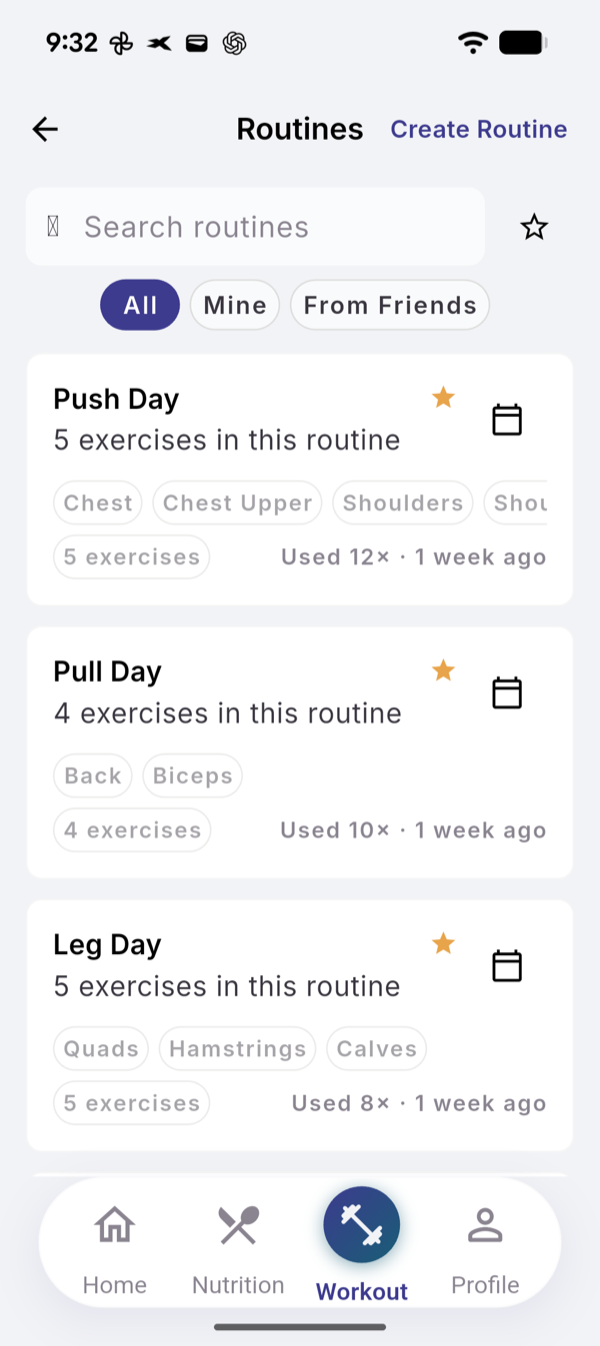
What you see
- From a session. On the finish sheet, turn on Save as routine (template) and give it a name.
- The routine sheet. Tapping a routine opens Start Workout, Edit Routine, Share, Add to favorites and Delete.
- Starting. The session opens with the routine’s exercises in order. You fill in the sets as you go.
- Filters. All, Mine and From Friends. The star shows favorites only.
- Most Used Routines on the Workout tab and Load from Routines under the + button start the same way.
Share with a friend
- Tap the routine and choose Share.
- Pick one or more friends under Share routine with.
You see “Routine shared!”. Your friend finds it under From Friends.
Limits
Routines have no limit and use no AI. Adding an exercise that is new to EvoLogs uses the AI exercise count (Free 10, Pro 100 per 30-day cycle).
If it does not work
- “Routine name is required” or “Please add at least one exercise”. Fill in both, then Save.
- “Active Session. Finish workout.” Finish or discard the open session first.
- Delete asks once and cannot be undone. Past sessions from that routine stay in History.
Related
- Why it works this way: /blog/what-evo-does-with-your-training
- /help/start-a-session
- /help/add-an-exercise-by-saying-it