
Training readiness compares your training load of the last 7 days with your average of the last 28. Open the Workout menu, choose Reports, and it is the second card, Training Readiness.
Steps
- Tap the menu icon at the top right of the Workout tab and choose Reports.
- Find the Training Readiness card under Summary.
- Read the number on the bar and the label under it.
- Set Effort at the end of every session to how hard it felt, since the number uses it.
From History, the chart icon at the top opens the same report.
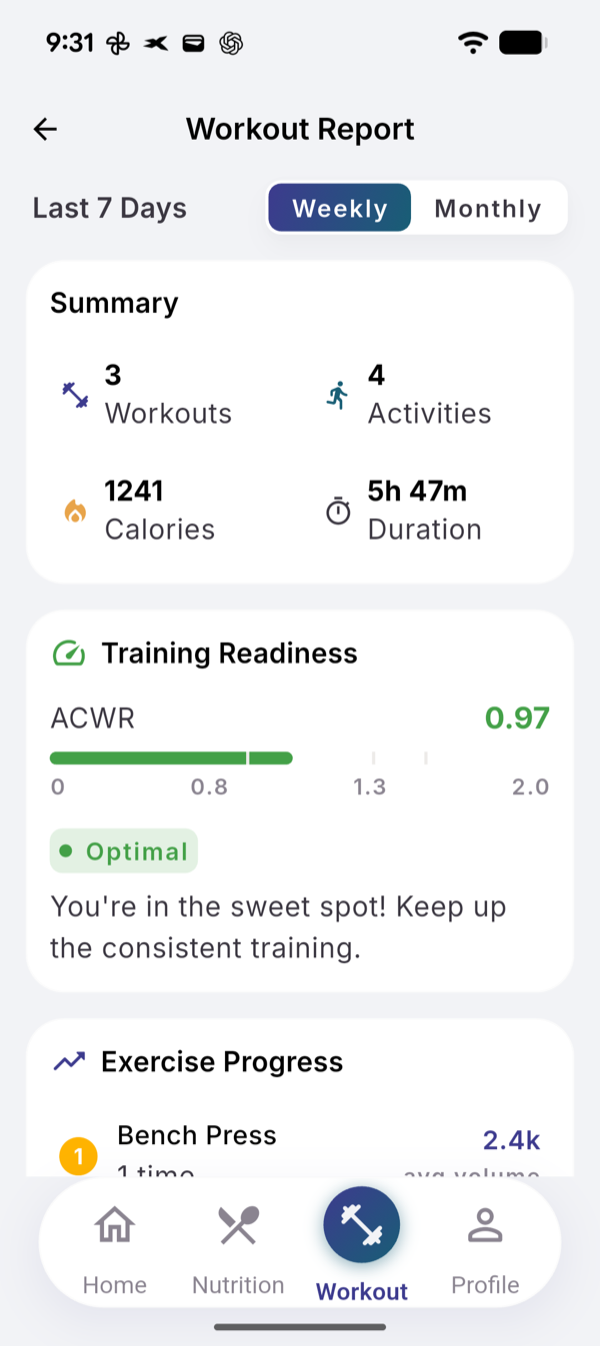
The four labels
| Number | Label | What it means |
|---|---|---|
| under 0.8 | Ready for more | You trained less than your 28-day normal |
| 0.8 to 1.3 | Optimal | This week looks like your recent normal |
| 1.3 to 1.5 | Elevated load | Clearly heavier than your recent normal; the card suggests a recovery day soon |
| above 1.5 | Recovery needed | Much heavier than your last month |
Each session’s load is its minutes × effort / 10. Every session counts: strength sessions, activities and imported workouts.
Why it says 4.00 at first
The number needs about four weeks of history. While all your sessions fall in the last 7 days, the 7-day average is four times the 28-day one, so the card reads 4.00 and Recovery needed. That is arithmetic, not a warning. With very little load logged it stays at 1.00.
When it updates
When you save, edit or delete a session. It does not change overnight or on rest days. Weekly and Monthly show the same number.
Limits
No AI and no limit, the same on Free and Pro.
Related
- Why it works this way: /blog/training-readiness-acwr
- /help/read-muscle-recovery
- /help/start-a-session