
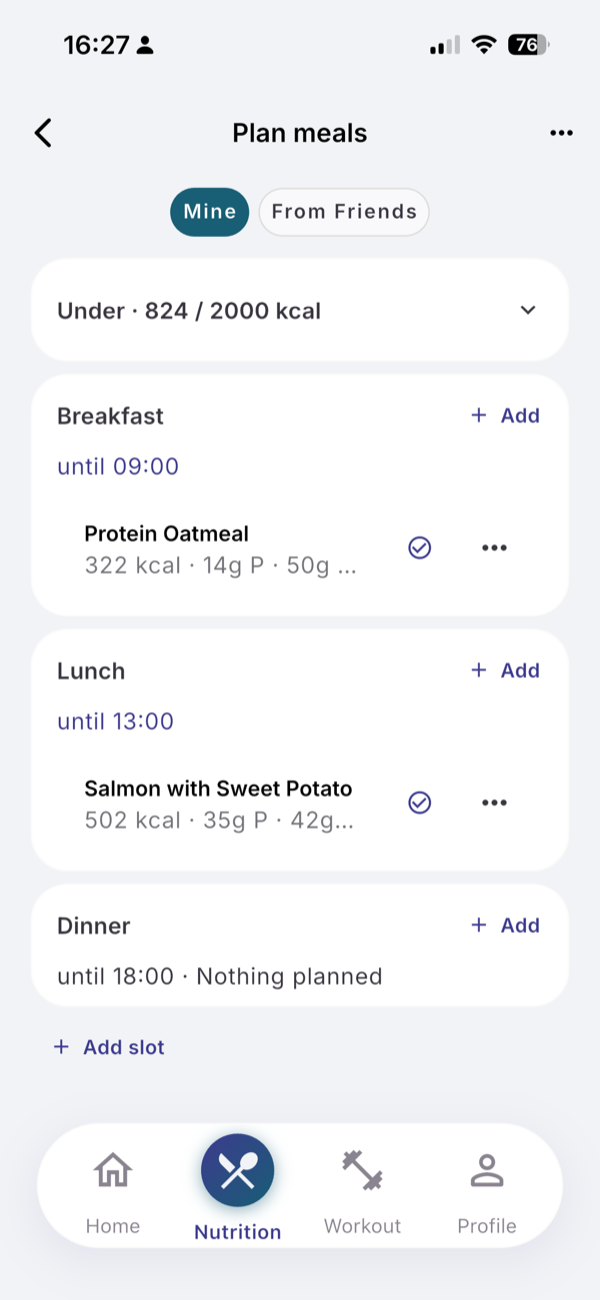
Open Plan meals from the Nutrition menu. It shows today and the next nine days. Add a recipe to each slot, then build a shopping list from the days you planned.
Steps
- On the Nutrition tab, open the menu at the top right and tap Plan meals.
- Tap a day in the strip at the top.
- Tap Add in a slot, tap a recipe, yours or one From Friends, and choose Add to plan.
- Tap Add slot to plan a slot that is not shown on every day.
- On a planned meal, open its menu for Edit before logging, Skip today or Remove from plan.
- Tap the More actions menu at the top of Plan meals, then Generate shopping list.
- Under Select days to include, choose the days, then Add to list or Replace list.
- The Shopping List opens when it is ready. Tick items as you shop, and tap Share to send it as text.
What you see
Each day shows its total against your calorie target as Under, On target or Over. Tap a slot’s deadline, such as “until 09:00”, to change it for that day only. A skipped meal shows Undo skip.
The same ingredient from several recipes becomes one line. Swipe an item left to remove it, or tap Clear checked.
What it does not do
- Plans use recipes only, from today up to ten days.
- You cannot type your own items on the shopping list. Items come from planned recipes, or from Add to shopping list on a recipe.
Limits
Free on Free and Pro. No AI is used.
Related
- Why: /blog/meal-schedule-and-auto-log
- /help/recipes
- /help/meal-schedule-and-auto-log