
Open Plan meals, then Meal schedule from its menu. Choose which slots appear every day, set a deadline hour for each, and decide whether planned meals log themselves. Auto-log planned meals is off until you turn it on.
Steps
- On the Nutrition tab, open the menu at the top right and tap Plan meals.
- Tap the More actions menu at the top of Plan meals and choose Meal schedule.
- Under Daily slots, turn on the slots you want on every day.
- Under Deadline hours, tap a slot’s hour in Weekdays and pick a new one, or None.
- Do the same in Weekend, or tap Copy from weekdays.
- Turn on Auto-log planned meals if you want planned meals logged for you.
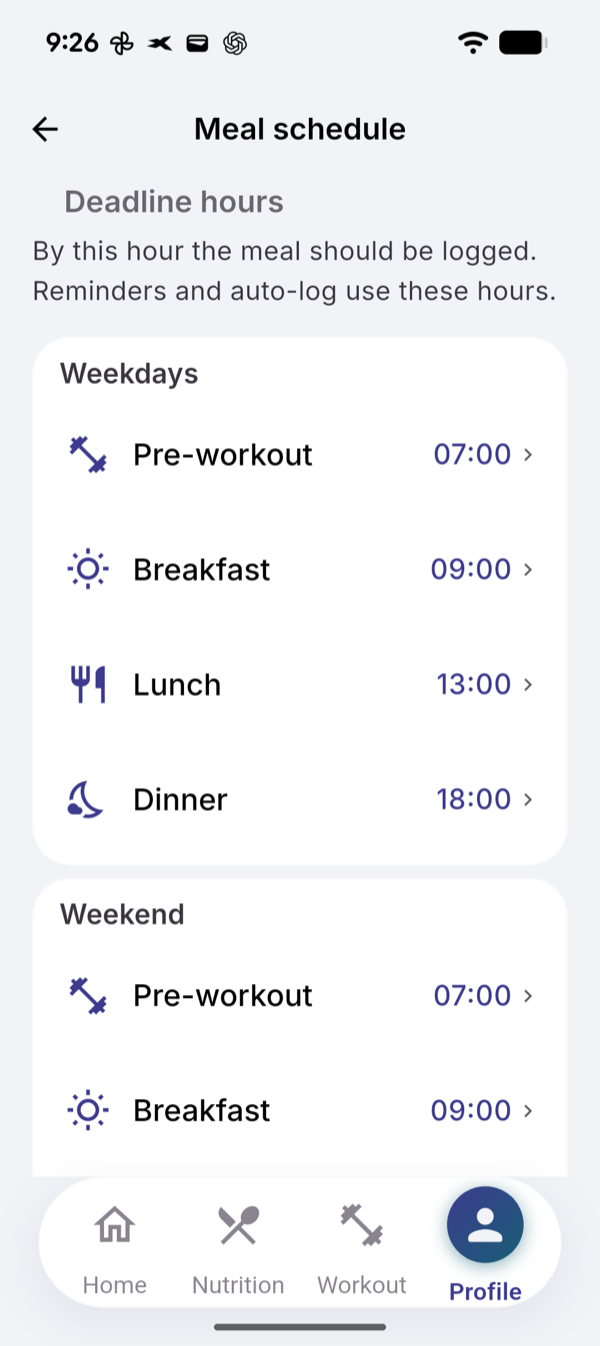
What happens at the deadline
If you already logged that slot today, nothing happens. If a meal is planned for it:
- Auto-log on: the meal is logged and marked Auto-logged. It counts in today’s totals. Tap I ate this on the meal to confirm it, or delete it if you did not eat it.
- Auto-log off: you get a reminder. It opens Confirm Meal, with Confirm and Log and Edit First.
A slot set to None gets no reminder and no auto-log. A meal marked Skip today is never auto-logged.
Limits
Free on Free and Pro. No AI is used.
If it does not work
- No reminder: check your notification settings and quiet hours. Auto-log still runs with notifications off.
- Meal Not Found: “This planned meal may have been removed or already logged.”
Related
- Why: /blog/meal-schedule-and-auto-log
- /help/plan-meals-and-shopping-list