
On the Nutrition tab, tap add, choose Take photo, and take or pick a photo of the plate. EvoLogs estimates the meal item by item and opens the Meal Preview, where you check it before tapping Log Meal.
Steps
- Open the Nutrition tab and tap the add button.
- Choose Take photo in the sheet.
- Tap Take a photo to use the camera, or Choose from gallery.
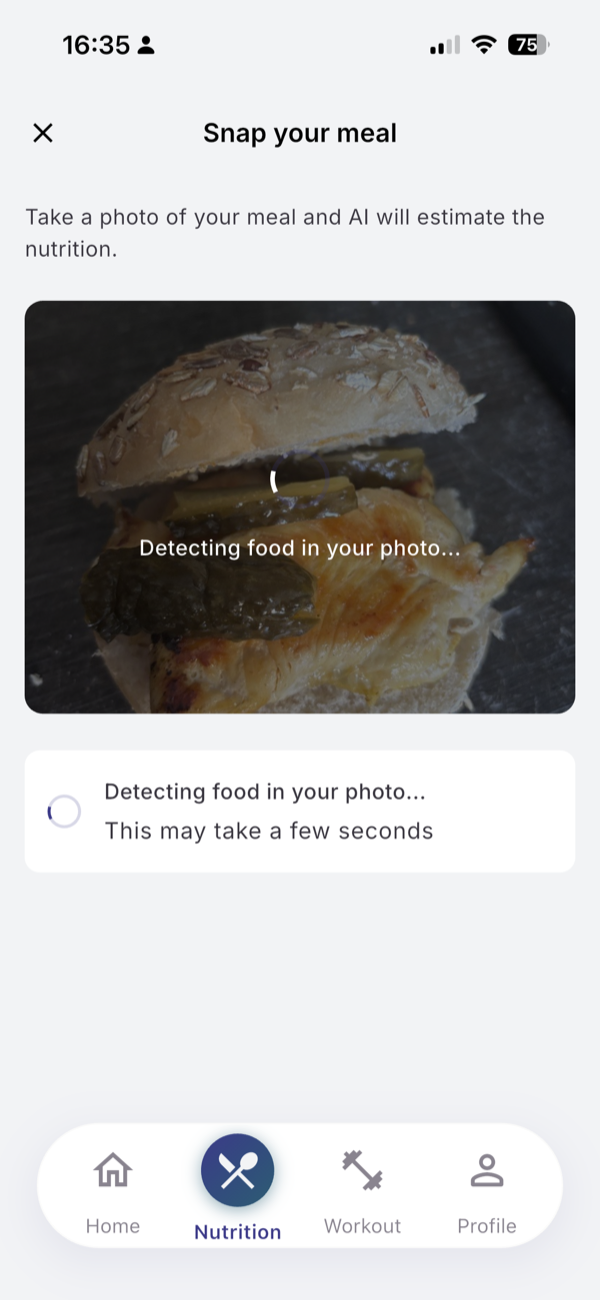
- Wait while the screen shows “Detecting food in your photo…”.
- Pick a size under How much was this? if the plate was smaller or bigger than usual.
- Open Adjust individual items to check each item in the Based on: list.
- Tap Log Meal.
What you see
The Meal Preview has your photo at the top, the meal type, the name and the total as an estimate, such as “~379 kcal”. Each item has a colored dot: green, amber or red for high, medium or low confidence.
Include all food items in the frame, capture from above, and use good lighting. A photo cannot see oil or sauce; add those with Add.
Limits
| Plan | Photo analyses per 30-day cycle |
|---|---|
| Free | 5 |
| Pro | 40 |
A photo counts when it is analyzed. The Free number is doubled in your first week.
If it does not work
- “No food was detected in this photo. Try taking a clearer photo.” Tap Take another photo.
- “Something went wrong. Please try again.” Tap Try Again.
- “I’ve been helping you a lot lately.” You used this cycle’s photo analyses. Describe the meal in words instead.
Related
- What a photo gets right and wrong: /blog/log-a-meal-from-a-photo
- /help/fix-an-estimate-before-saving
- /help/log-a-meal-by-describing-it