
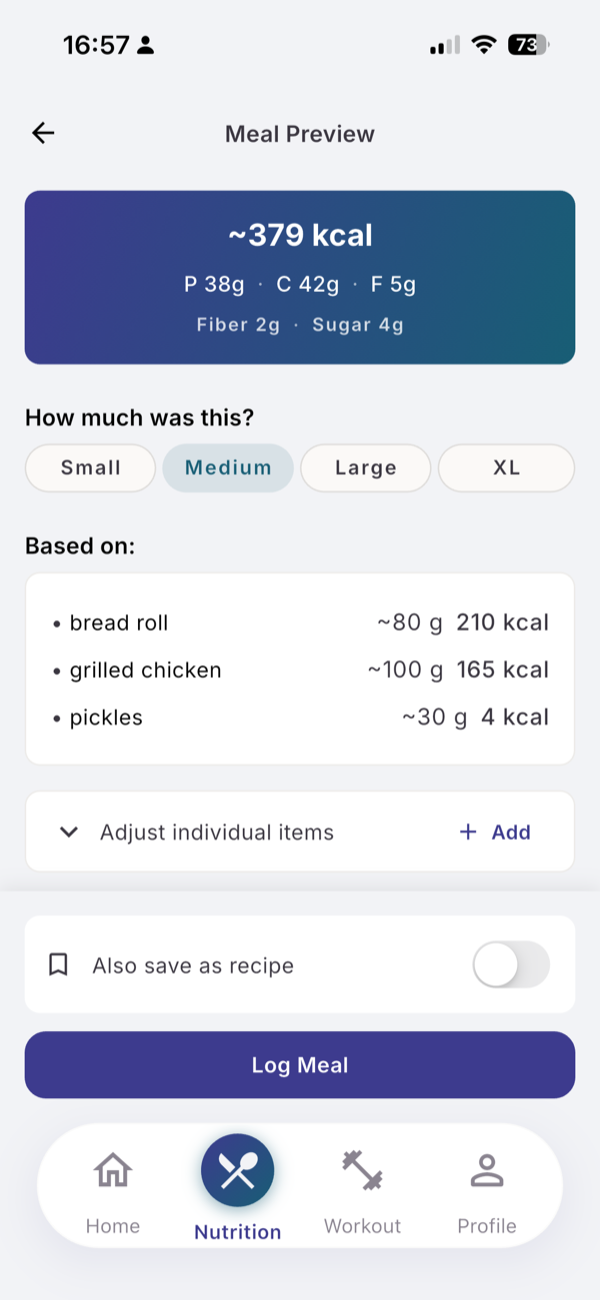
Every AI meal opens on the Meal Preview before it is saved. There you change the portion size, the quantity of each item, or the items themselves, and the totals update on your phone with no second AI call.
Steps
- Pick Small, Medium, Large or XL under How much was this? to scale the whole meal.
- Tap Adjust individual items to open the item list.
- Change an item’s quantity; its calories and macros update in proportion.
- Tap the delete icon on an item that is not in the meal.
- Tap Add and pick an ingredient from your list to add what is missing.
- Under Couldn’t parse, tap Search (when shown) to pick the right ingredient from your list, or Skip.
- Tap Log Meal.
What changes the numbers, and what does not
| You change | Calories and macros |
|---|---|
| Portion size | scaled: Small × 0.7, Large × 1.3, XL × 1.6 |
| An item’s quantity | recalculated for that item |
| Removing or adding an item | recalculated |
| The meal name (Edit name) | unchanged |
| An item’s name | unchanged |
| Raw or Cooked on an item | unchanged |
Renaming only changes the label. If an item was identified wrongly, remove it and add the right one.
Each item has a colored dot. Red means low confidence, so check those first.
Limits
Everything on this screen is free on Free and Pro. Only the first analysis counts against your quota.
Related
- Why the review matters: /blog/log-a-meal-from-a-photo
- /help/log-a-meal-by-describing-it
- /help/your-ingredient-list