
Open Profile, tap Friends, then tap the share icon (Invite friends) and send the link. When your friend opens it and taps Accept, a request reaches you; accept it and you are connected.
Steps
- Open Profile and tap Friends.
- Tap the share icon and send the link from your phone’s share sheet.
- Your friend opens the link and taps Accept on “wants to connect with you”.
- Open the Requests tab and tap the check mark next to their name.
- To remove someone, swipe their row to the left, then tap Remove on “Remove friend?”.
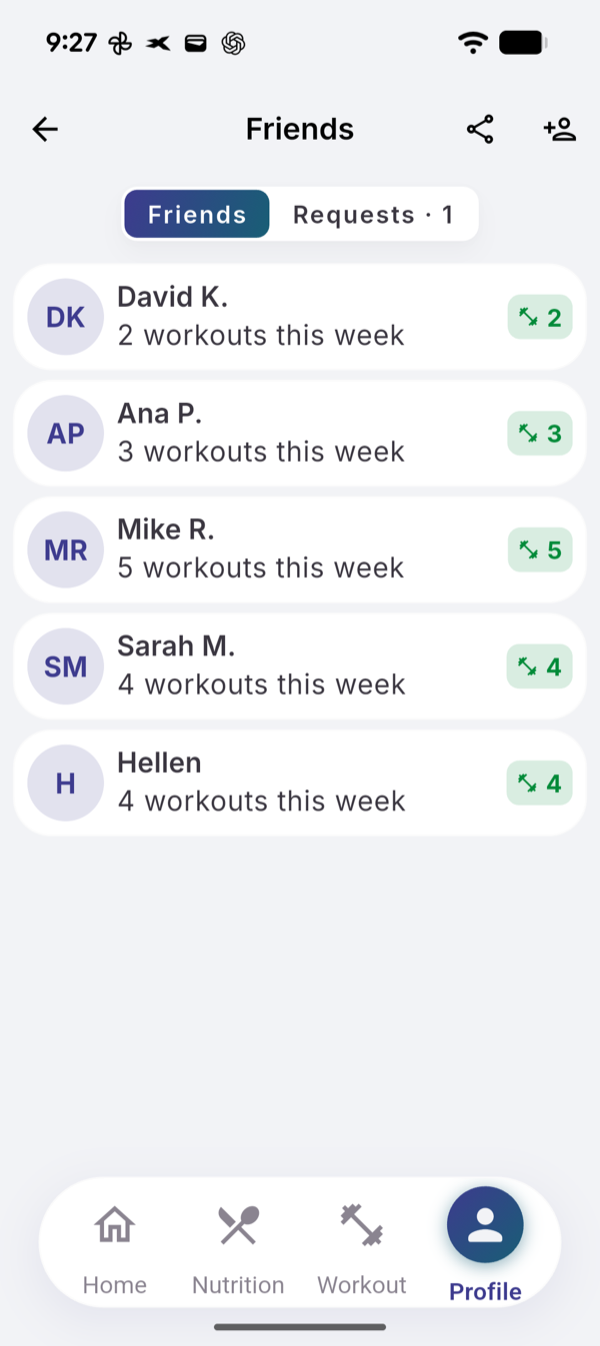
What you see
- What a friend sees about you. Your name, an initials circle and “3 workouts this week” (the last 7 days), or “No workouts this week”. Not your meals, weight, photos or sleep.
- Invited. Requests you sent and are still waiting on, with an X to cancel.
- Search. Off by default. In Data & deletion, under Friend Discovery, turn on Available for connections to find people by name or email and be found.
- Sharing. Recipes, your meal plan with its shopping list, routines and single exercises, one friend at a time. Your friend saves or dismisses each one.
There is no feed and no leaderboard. Friends are included on Free.
Limits
Up to 20 friends. The app shows no counter.
If it does not work
- “You’ve reached the friends limit. Remove a friend to add someone new.”
- Invite Expired or Invite Already Used: ask for a new link.
- “Connect to the internet to remove a friend.”
Related
- Why it works this way: /blog/friends-without-a-leaderboard
- /help/recipes
- /help/plan-meals-and-shopping-list