
Open History from the Workout menu, tap the session and choose Edit Workout. To delete it, swipe its row to the left and confirm.
Steps
- Tap the menu icon at the top right of the Workout tab and choose History.
- Tap the session and choose Edit Workout.
- Change the Workout Name, the date, the Start and End time, the Effort, or the reps and weight of any set.
- Tap Add set to add a set, or the bin icon to remove a set or an exercise.
- Tap Save and wait for “Workout updated”.
- Swipe the row left in History and tap Delete to remove the workout.
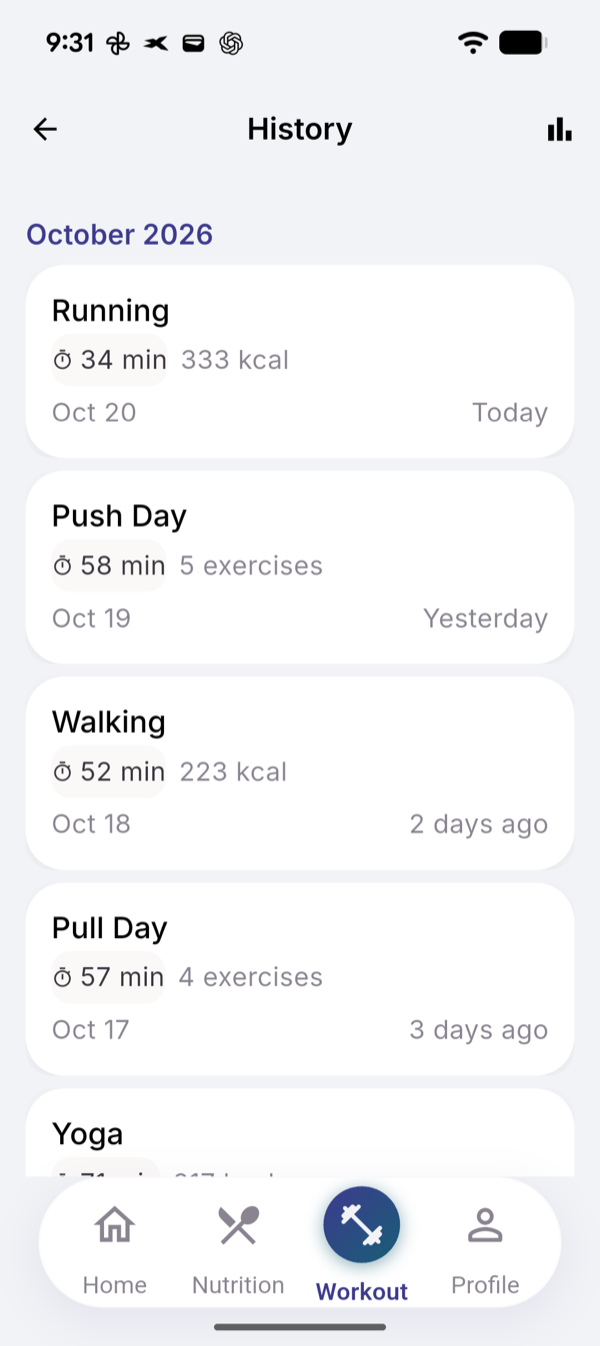
What you see
Tapping a session opens View details, Edit Workout, Repeat Workout and Plan from this session. View details shows every exercise and set, with Edit at the top and Delete at the bottom.
Activities such as a walk sit in the same list. Swipe one left to delete it with Delete Activity.
After you save or delete, your report, training readiness and muscle recovery are recalculated from what is left.
What you cannot do here
- Add a new exercise to a past workout. Log a new session instead.
- Remove the last exercise or the last set. A workout keeps at least one of each.
- Undo a delete. “This action cannot be undone.”
If it does not work
- “Error saving workout”. Check your connection and tap Save again.
- “Error deleting workout”. Try again from View details.
Related
- Why it works this way: /blog/what-evo-does-with-your-training
- /help/start-a-session
- /help/read-training-readiness