
Open the Nutrition menu and tap History for a day-by-day view of the last 7 days, or Reports for a summary of the last 7 or 30 days. Both are built from what you logged and use no AI.
Steps
- On the Nutrition tab, open the menu at the top right and tap History.
- Tap the calendar icon to choose another date range.
- Tap a bar in the Compliance chart to jump to that day’s meals.
- Tap a meal for its details, or open its menu to Log again or Delete.
- Tap the export icon and choose Share macros (per day) or Share menus (meals) to send the range as text.
- Go back to the menu and tap Reports.
- Switch between Weekly and Monthly.
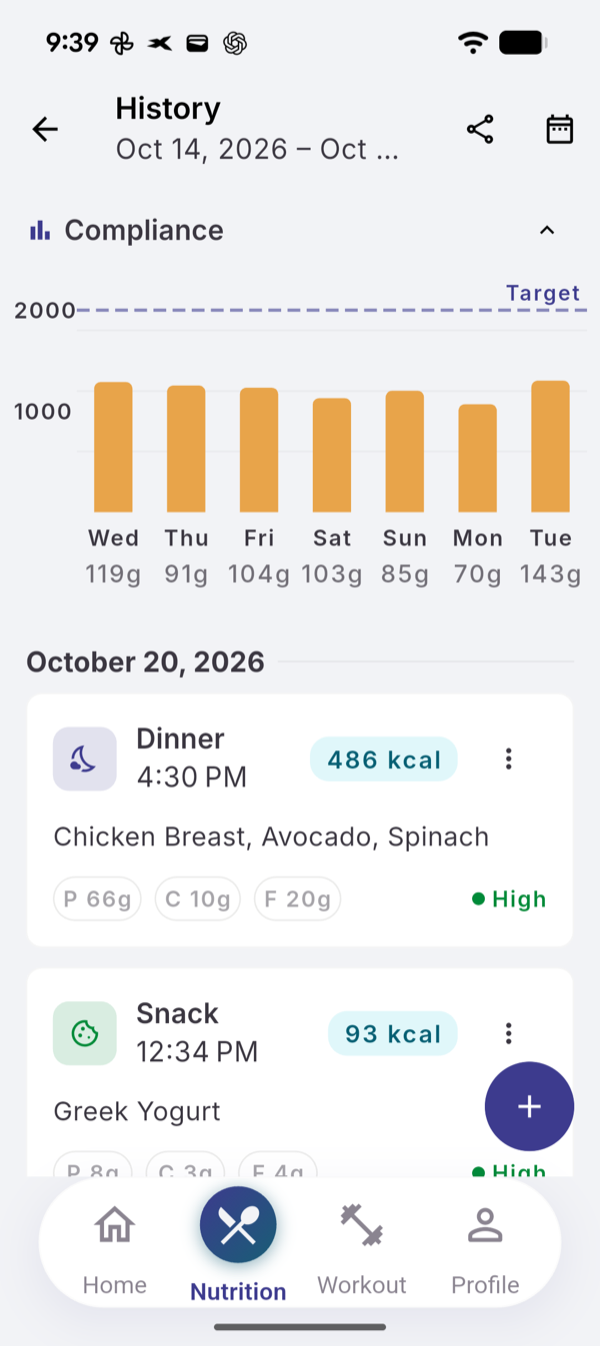
What the colors mean
| Bar | Calories against your target |
|---|---|
| Green | within 10 %, either way |
| Amber | more than 10 % under |
| Red | more than 10 % over |
The dashed line is your target; under each day is your protein in grams.
What the report shows
A short summary of how many meals you logged on how many days, up to four short observations, How you ate (Logged on, Calorie rhythm, Macro proximity to targets), Foods you reached for and When you ate. Every line comes from your logs and fixed rules, not AI, so it uses no quota.
If it does not work
- Not enough data yet: a report needs at least 3 days with logged meals in the period.
- “No meals logged in this range.” Pick another range with the calendar icon.
Related
- How to read your week: /blog/the-week-you-actually-ate
- /help/log-a-meal-by-describing-it