
Open Profile, tap Notifications and switch on Daily check-in from Evo. It is off by default. Evo’s other notifications need no switch of their own: they follow All Notifications and Quiet Hours on the same screen.
Steps
- Open Profile and tap Notifications.
- Check that All Notifications is on.
- Switch on Daily check-in from Evo.
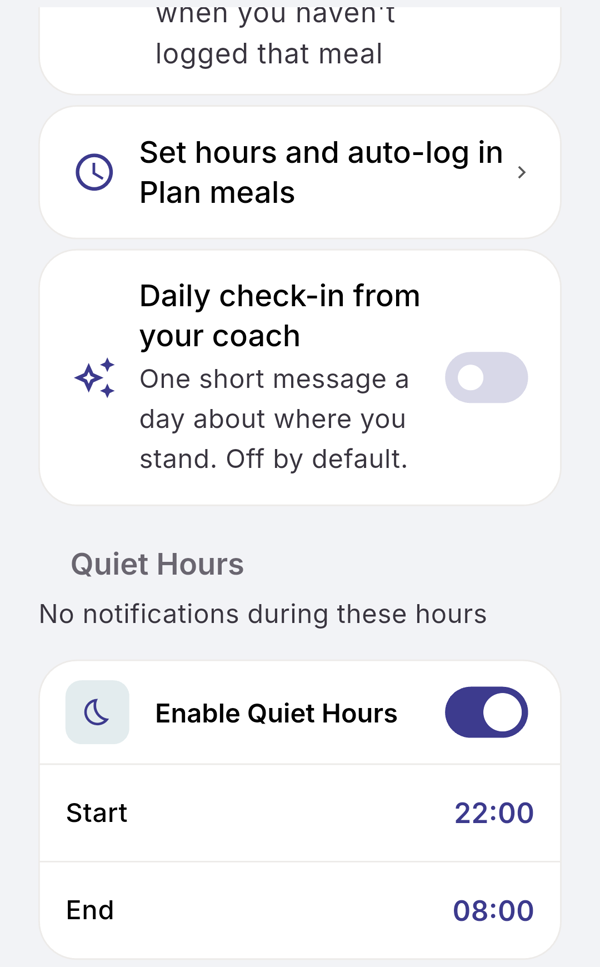
- Under Quiet Hours, keep Enable Quiet Hours on and tap Start or End to change the times, or switch it off.
What you see
- Daily check-in. “One short message a day about where you stand. Off by default.”
- Evo’s notifications. When Evo writes a message on its own, you get a notification with its title and first line. Tapping it opens the thread at that message. Answers to your questions and day checks are not sent as notifications.
- Quiet hours. On by default, from 22:00 to 08:00. Nothing is sent in that window.
- Morning messages. A message Evo writes during quiet hours is not sent later. With the default times, Evo’s morning messages, the daily check-in included, may wait on the Home card until you open the app.
Limits
The daily check-in, Evo’s notifications and quiet hours work the same on Free and Pro.
If it does not work
- Daily check-in from Evo is greyed out: All Notifications is off, or notifications are blocked on your phone.
- “Notifications are blocked. Enable them in device settings to receive updates.” Tap Open Settings and allow notifications for EvoLogs.
Related
- What EvoLogs sends on a day you skip: /blog/evo-never-scolds
- /help/evo-card-and-thread